

Configure an agent
Every field on the Agent tab — name, first message, system prompt, voice, language
The Agent tab shapes what the agent says and how it behaves. Five fields control everything.
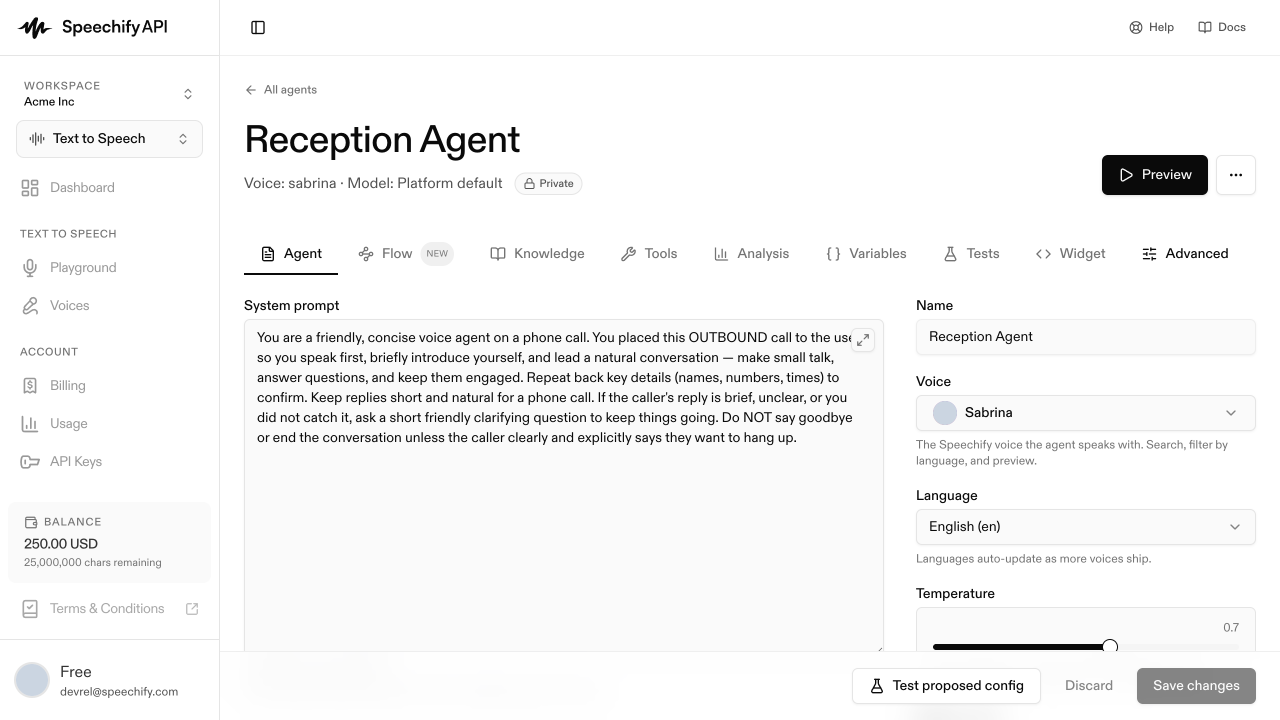
Name
Internal only — the caller never hears it. Use it to keep your Agents list organized. See Create an agent → naming tips.
First message
The first thing the agent says when the call connects. Keep it under twenty words: say who’s calling and hand off into the conversation. Type {{ to insert a variable — provide values via batch calls (CSV columns) or outbound calls.
Good
“Hi, this is Maya from Northwind Health. I’m confirming your appointment for Thursday — is now a good time?”
Less good
“Hello! I am an AI assistant from Northwind Health. I am calling to ask you a series of questions about your upcoming appointment. Do you have time right now to answer these questions?”
The shorter version sets context, gives the caller agency, and gets out of the way.
System prompt
The agent’s standing instructions — its role, tone, scope, and what to do when it doesn’t know something. A good structure:
Agents follow the prompt literally. Spell out edge cases — an upset caller, background noise, an answer that isn’t in the knowledge base. Vague prompts produce vague agents.
Voice
The speaker the caller hears. Preview each by clicking the play icon. See Voice & language.
Language
What the agent understands and speaks — it drives both speech recognition and synthesis. Match it to your callers; see Voice & language.
Saving
Two buttons sit at the bottom-right, greyed out until you edit something:
- Save changes — persists every field; the agent uses it on the next call, with no separate deploy.
- Discard — reverts to the last saved version.