
Batch calls

Place outbound calls to many recipients in a single API request

Batch calls dial a list of phone numbers through one of your voice agents in a single request. Each recipient can receive personalised variables (name, account number, appointment time, etc.) that your agent’s prompt references via {{key}} placeholders. Batches run immediately or schedule up to 30 days ahead.

Create a batch call

Send a JSON body with the list of recipients. Each recipient needs a phone number in E.164 format. Any extra fields go into dynamic_vars and are injected as dynamic variables for that call.

POST
/v1/agents/batch-calls
1curl -X POST https://api.speechify.ai/v1/agents/batch-calls \
2 -H "Authorization: Bearer <token>" \
3 -H "Content-Type: application/json" \
4 -d '{
5 "name": "Appointment reminders",
6 "agent_id": "agent_01HS...",
7 "recipients": [
8 {
9 "phone": "+14155551234",
10 "dynamic_vars": {
11 "first_name": "Alice",
12 "appointment_date": "May 5th at 2pm"
13 }
14 },
15 {
16 "phone": "+14155555678",
17 "dynamic_vars": {
18 "first_name": "Bob",
19 "appointment_date": "May 6th at 10am"
20 }
21 }
22 ]
23}'

The endpoint returns 202 Accepted and the batch starts dialing immediately in the background.

CSV upload (alternative)

You can also upload a CSV file via multipart/form-data. The CSV must have a phone column; all other columns become dynamic_vars.

1phone,first_name,appointment_date
2+14155551234,Alice,May 5th at 2pm
3+14155555678,Bob,May 6th at 10am
$curl -X POST https://api.speechify.ai/v1/agents/batch-calls \
> -H "Authorization: Bearer $SPEECHIFY_API_KEY" \
> -F "name=Appointment reminders" \
> -F "agent_id=YOUR_AGENT_ID" \
> -F "csv_file=@recipients.csv"

Caller-ID override

By default each call uses the phone number bound to your agent. Pass phone_number_id to override the caller ID for the entire batch:

1{
2 "name": "Outreach campaign",
3 "agent_id": "YOUR_AGENT_ID",
4 "phone_number_id": "YOUR_PHONE_NUMBER_ID",
5 "recipients": [...]
6}

Schedule a batch

Set scheduled_at to an ISO 8601 timestamp (RFC 3339) to delay execution. The batch enters scheduled status and starts dialing at the specified time. You can schedule up to 30 days in advance.

POST
/v1/agents/batch-calls
1curl -X POST https://api.speechify.ai/v1/agents/batch-calls \
2 -H "Authorization: Bearer <token>" \
3 -H "Content-Type: application/json" \
4 -d '{
5 "name": "Monday morning follow-ups",
6 "agent_id": "agent_01HS...",
7 "recipients": [
8 {
9 "phone": "+14155551234",
10 "dynamic_vars": {
11 "first_name": "Alice"
12 }
13 }
14 ],
15 "scheduled_at": "2025-05-05T09:00:00Z"
16}'

Cancel a batch

Cancel a scheduled or pending batch before it starts dialing. Once a batch is running, it cannot be cancelled.

POST
/v1/agents/batch-calls/:id/cancel
1curl -X POST https://api.speechify.ai/v1/agents/batch-calls/id/cancel \
2 -H "Authorization: Bearer <token>"

Check batch status

Poll the detail endpoint to track progress. The response includes the parent batch and all recipients with their individual status.

GET
/v1/agents/batch-calls/:id
1curl https://api.speechify.ai/v1/agents/batch-calls/id \
2 -H "Authorization: Bearer <token>"

List all batches

Returns all batches in your workspace, newest first.

GET
/v1/agents/batch-calls
1curl https://api.speechify.ai/v1/agents/batch-calls \
2 -H "Authorization: Bearer <token>"

Batch lifecycle

StatusMeaning
pendingCreated, waiting to start dialing
scheduledWill start at scheduled_at
runningActively placing calls
completedAll recipients processed
failedBatch-level error (e.g. invalid agent)
cancelledCancelled before dialing started

Each recipient has its own status: pendingdialingcompleted or failed.

Webhooks

If your agent has a webhook_url configured, a conversation.completed webhook fires for each call in the batch after it ends. The payload includes the transcript, evaluations, and any data-collection fields you configured. See Webhooks for the payload format and signature verification.

Limits

LimitValue
Recipients per batch1,000
CSV upload size5 MB
Schedule windowUp to 30 days in advance
scheduled_at minimumMust be in the future

From the dashboard

You can launch and monitor batches in the console without the API.

1

Open Batch calls

Click Batch calls in the sidebar, then New batch. Give it a name and pick the agent that will place the calls. (Batch calling needs an outbound-capable number bound to the agent — see Add a number.)

2

Add recipients

Upload a CSV with at least a phone column in E.164 format. Extra columns become per-call dynamic variables the prompt can reference as {{first_name}}. Click Download sample for a template, or add a handful of numbers manually.
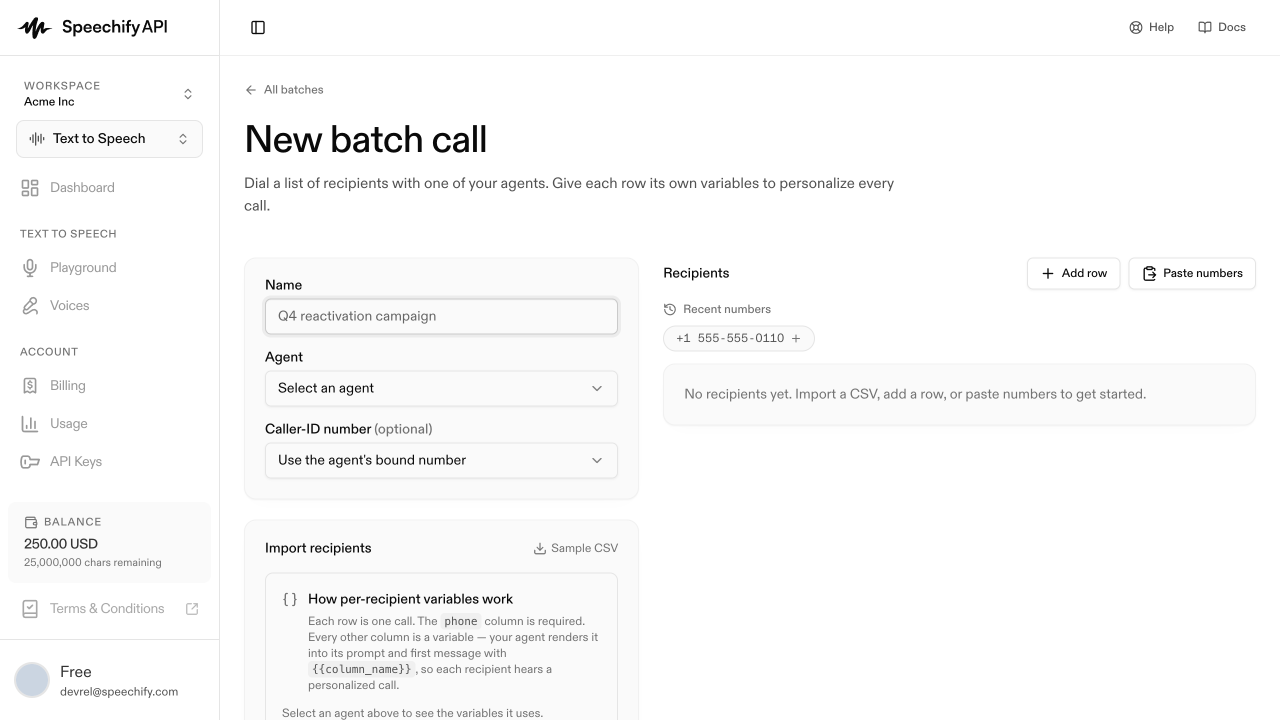
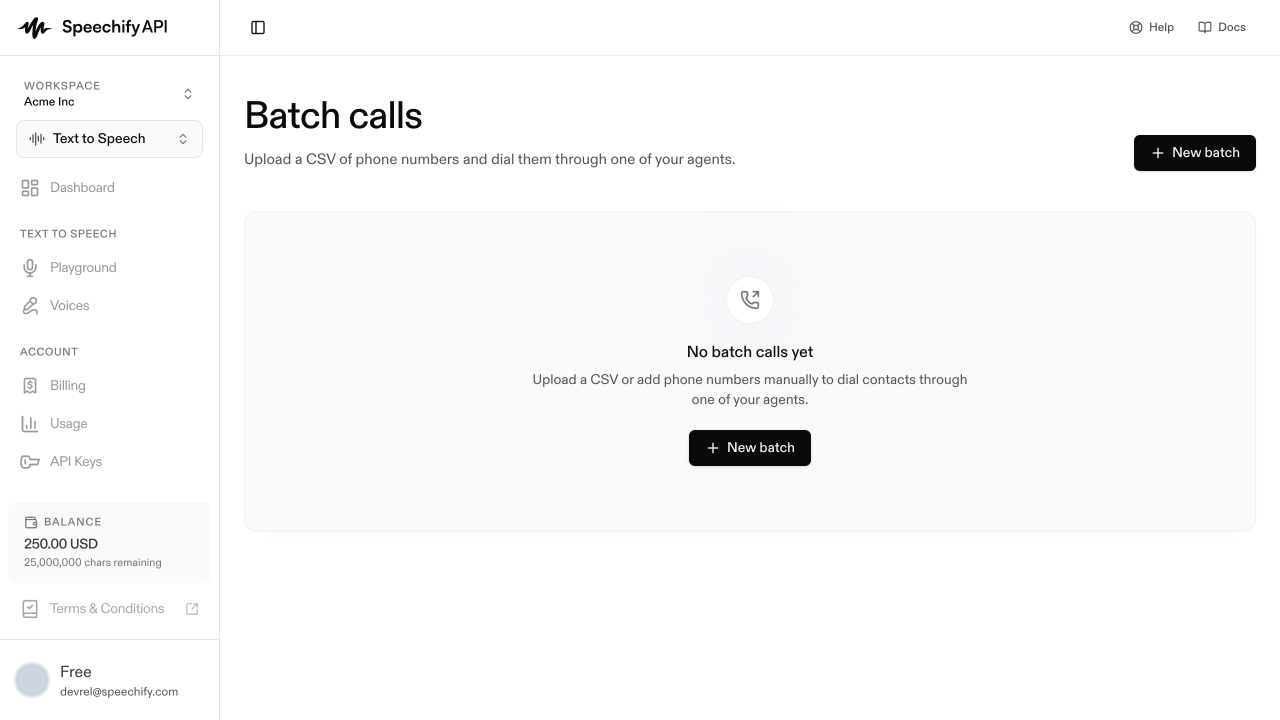
New batch page with recipient upload
The New batch page
3

Start or schedule

Toggle Schedule for later to pick a date and time, or leave it off to start immediately on Start batch.

4

Monitor progress

Open the batch from the Batch calls list to watch per-row status as numbers are dialed.

Batch list showing per-recipient progress
Per-recipient progress for a running batch