

Dashboard tour
The dashboard at console.speechify.ai is organized into four groups in the left sidebar — Configure, Monitor, Deploy, and Account — plus a top-level Dashboard. This page is a one-screen tour of each section.
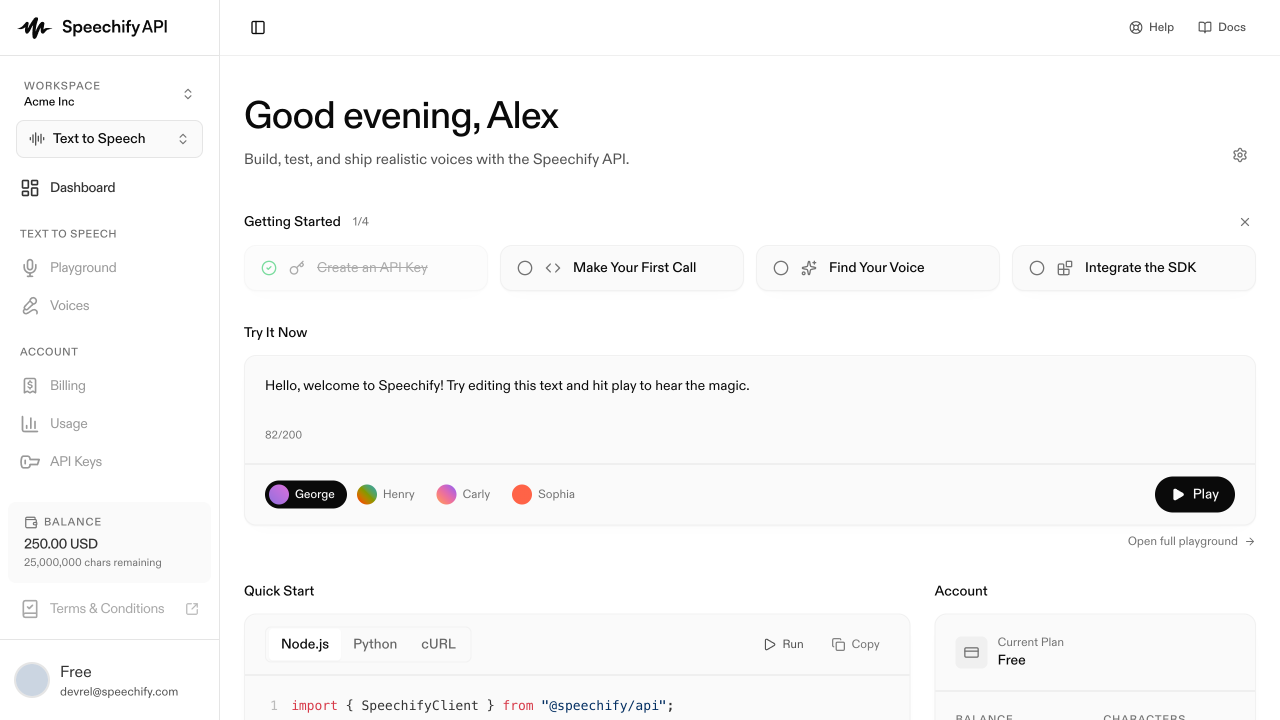
Dashboard
Your landing page. It shows a getting-started checklist while you are new, then evolves into KPI cards (call volume, average duration, success rate, average cost) and a Recent conversations feed once you have agents handling calls.
See: Get started → Quickstart.
Configure
Agents
Where you create and configure voice agents. Each agent has its own detail page with three tabs: Agent (prompt, voice, language), Knowledge (attached knowledge bases), and Widget (embed snippet plus appearance customization for the on-site widget).
See: Agents.
Knowledge
Knowledge bases are reusable collections of documents your agents can quote from. Upload PDFs and text files, import a URL, or crawl a site — then attach the resulting knowledge base to one or many agents.
See: Knowledge bases.
Monitor
Conversations
Every call your agents have handled, with the full transcript and per-call metadata. Filter by date, status, duration, agent, channel, or user.
See: Conversations.
Deploy
Phone numbers
Inbound and outbound phone numbers — bring your own from Twilio or your SIP trunk, or use a LiveKit-provisioned number. Each number can be bound to one agent.
See: Phone numbers.
Batch calls
Upload a list of numbers and let an agent dial through them. Use this for appointment confirmations, follow-ups, or any outbound campaign.
See: Batch calls.
Account
Billing
Your current plan, payment method, and invoice history.
See: Account → Billing.
Usage
How many call minutes you have used this billing period, and which agents consumed them.
See: Account → Usage.
API keys
For teams that want to drive Speechify Voice Agents programmatically through the underlying Speechify API. The dashboard works fine without ever creating an API key.
See: Account → API keys.
Workspace switcher
Top-left in the sidebar. Each workspace is a separate environment with its own agents, numbers, and billing. Click your workspace name to switch or create a new one.
See: Account → Workspace.