

Voice Agents quickstart
Get your API key
- Sign up at console.speechify.ai
- Go to API Keys
- Copy your default API key (or create a new one)
Create an agent
An agent bundles a prompt, a voice, and a default LLM. Agent voice IDs come from the curated agent voice catalog, which is a different (smaller) set than the TTS /v1/voices catalog. List the valid IDs with GET /v1/agents/voices — the same slugs are accepted by POST/PATCH /v1/agents. Built-in examples: sabrina (the default), carly, dominic, lyla. Personal/cloned voices are TTS-only and cannot be assigned to an agent.
The response includes the new agent’s id — you’ll pass it to every agent-scoped call below.
Start a conversation
POST /v1/agents/{id}/conversations provisions a realtime voice session, dispatches the agent, and returns a short-lived access token. The caller connects directly to the session with that token — audio never flows through our server.
The response carries the conversation, the LiveKit room, a short-lived token, and the realtime url the caller connects to:
Embed it on your site
The fastest way to hear your agent on an actual web page is the drop-in web component:
That’s the whole integration for a public agent. Enable the Public toggle on the agent’s Embed tab in the console, add the site’s origin to the allowlist, and the widget works unauthenticated — your API key stays on the server.
For private agents, mint a session token on your backend and pass it to the widget via session-token + session-url attributes. Full details in Embed.
Test it from the console
The quickest path to hearing the agent without writing any integration at all: open the agent in the console, click Test Call, and talk.
Inspecting conversations
Every turn is streamed to the control plane and persisted with timestamps.
From the dashboard (no code)
Prefer to click rather than curl? You can do the whole flow above in the console without writing any code.
Create your workspace
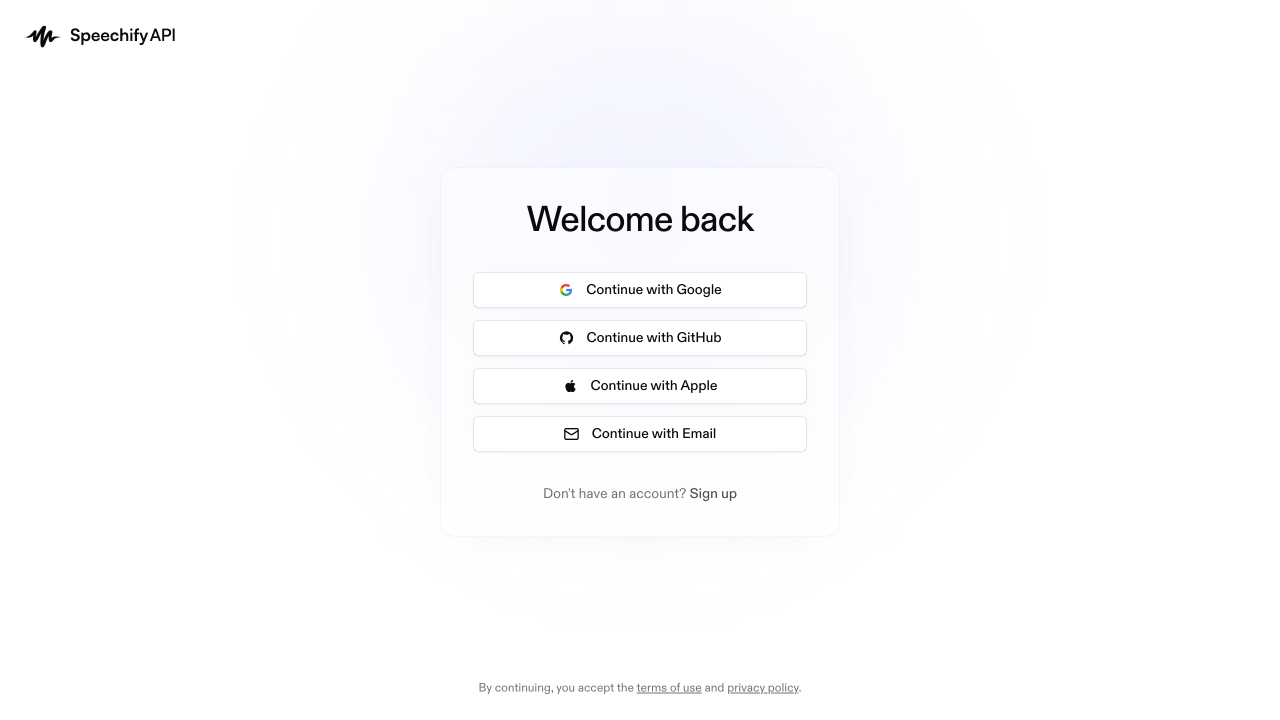
Open console.speechify.ai and sign up. Speechify creates a workspace for you automatically — every agent, knowledge base, phone number, and conversation lives inside it.
Create your first agent
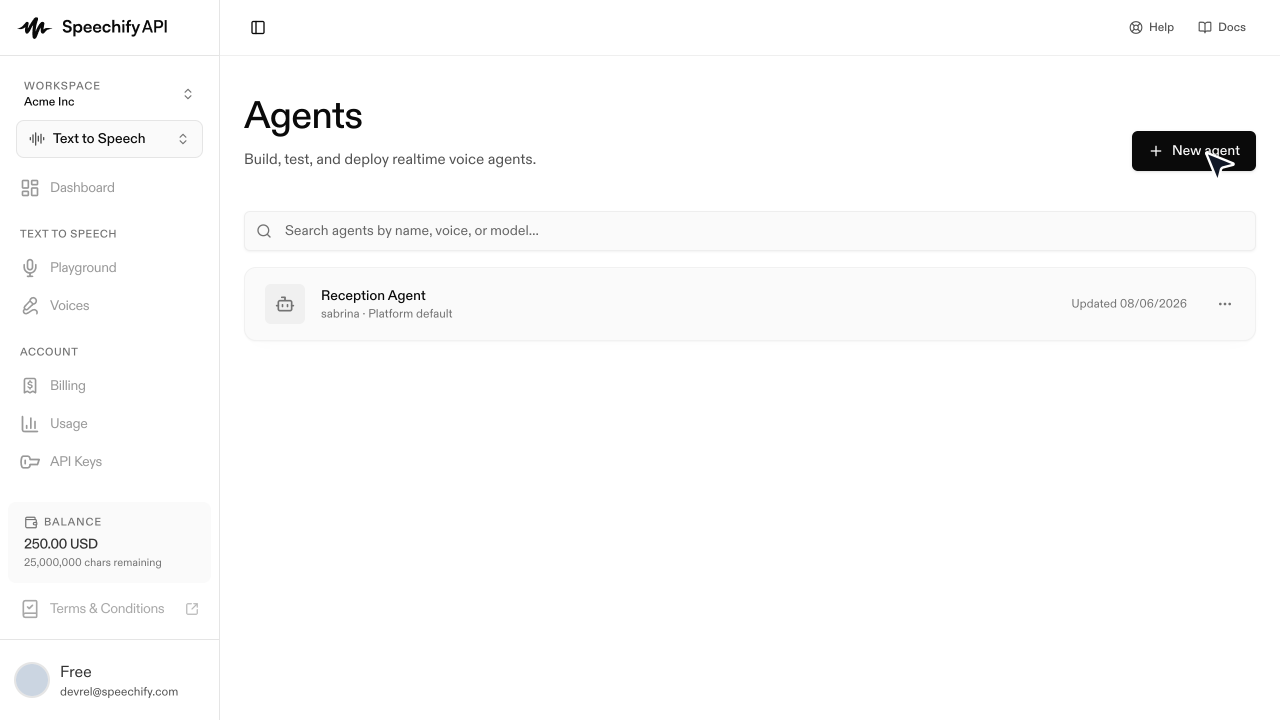
Click Agents in the left sidebar, then New agent. Names are for you — the caller never hears them.
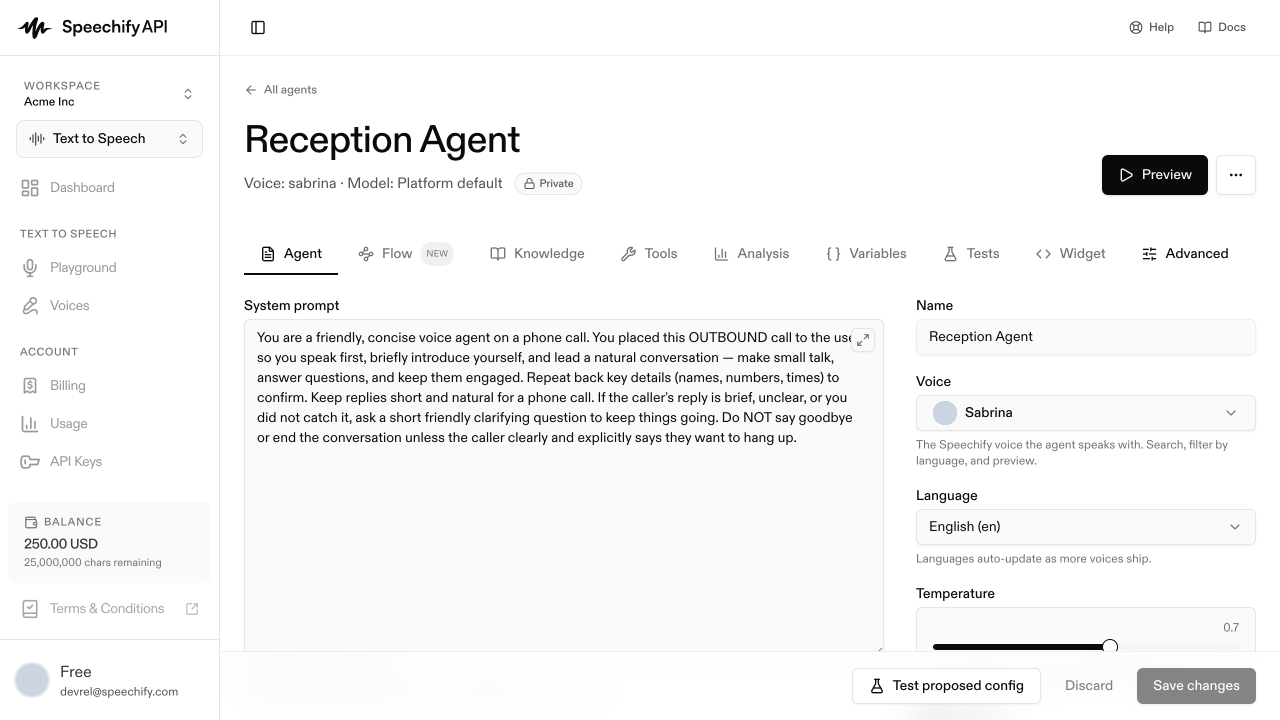
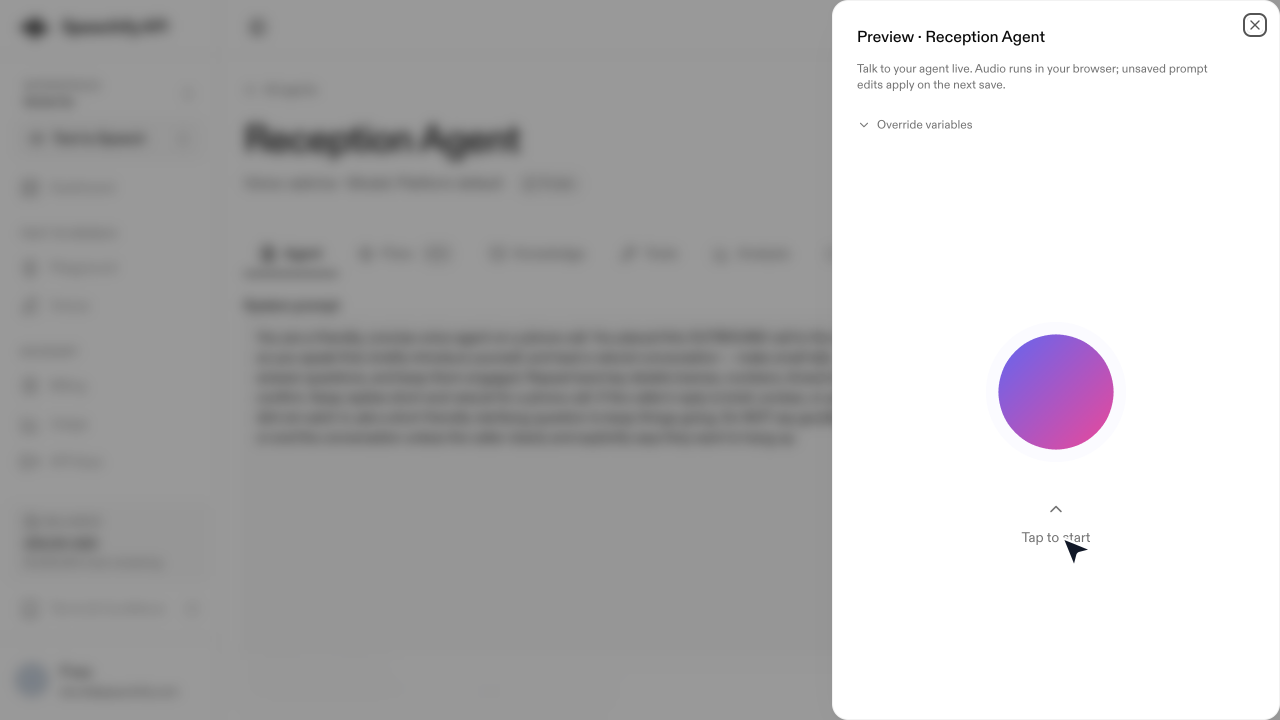
For the full walkthrough — including connecting a phone number and making a test call — see Create an agent and Add a number.
Next steps
Give the agent access to your backend, the caller’s device, or built-in actions like end_call.
Receive a signed POST after each conversation completes.
Use a custom voice with your agents.
Full schemas for /v1/agents, /v1/tools, /v1/agents/conversations.